Turn Your Game Controller Into a Powerful Vibrator or Massager
Experience powerful vibrations with your gamepad. Our app transforms any PS4, PS5, Switch or Xbox controller into the ultimate massage / vibrator device.
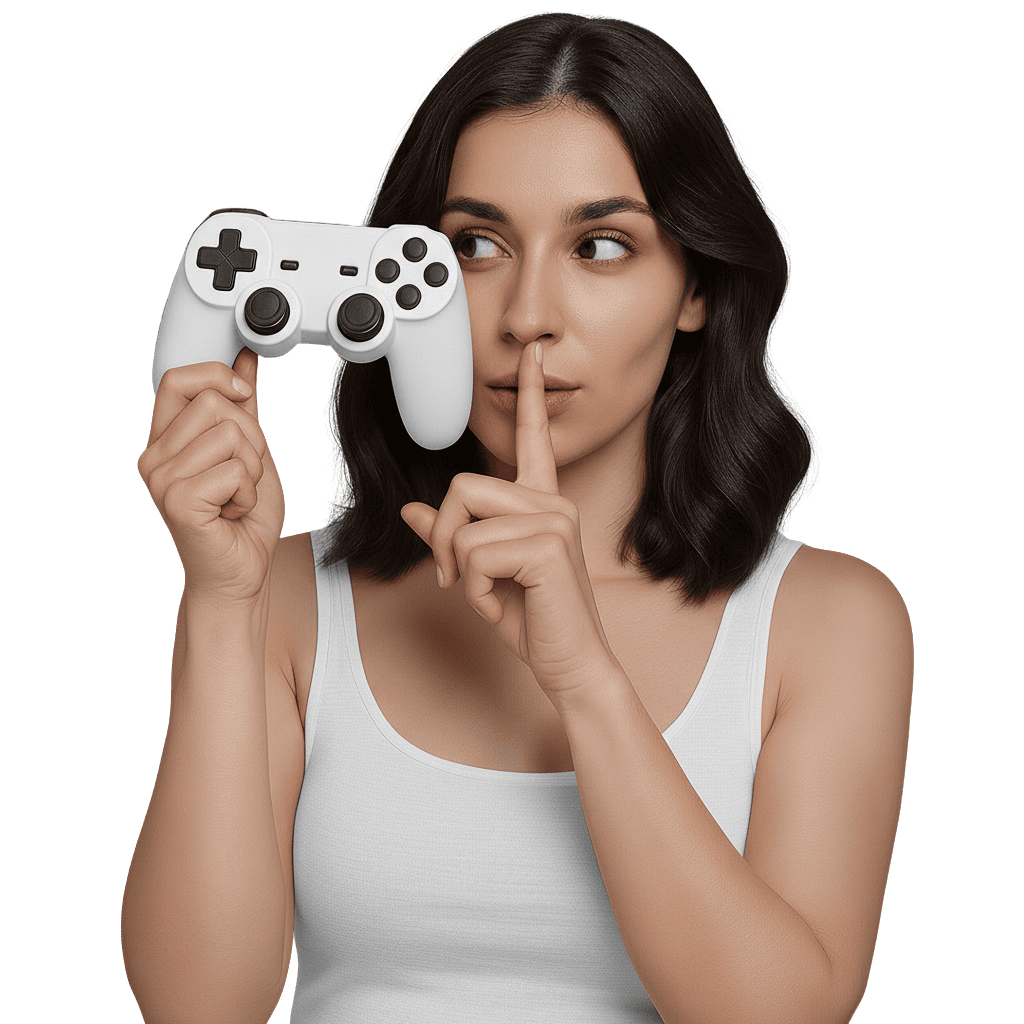
Experience powerful vibrations with your gamepad. Our app transforms any PS4, PS5, Switch or Xbox controller into the ultimate massage / vibrator device.
Connect PS5, PS4, and Xbox controllers via Bluetooth for incredibly strong vibrations that phone motors simply can't match.
Choose from Wave, Pulse, Earthquake, Continuous, Fireworks, and many more pre-designed patterns for every mood.
Precisely control vibration intensity and frequency to find your perfect massage experience.
Design your own vibration patterns quickly and easily with our intuitive pattern creation tools.
Control and create vibration patterns in real-time with responsive touch controls for instant satisfaction.
Share control with a distant partner and let them take charge of your massage experience remotely.
How remote control worksA quick look at Massage Controller running with each controller.
Unlike other apps that rely on weak phone vibrations, our controller integration delivers powerful, satisfying massage experiences.
Fine-tune every aspect of your massage with granular control over intensity, speed, and patterns.
Your personal massage experiences remain completely private with our secure, offline-capable design.
Available on both iOS and Android. Works with or without controllers - automatically falls back to phone vibration.
This message means your phone correctly detected and paired with your controller, the issue isn't the connection. It's that your phone's Android version, or your manufacturer's software layer (Samsung's One UI, etc.), doesn't yet support sending vibration signals to controllers.
This isn't a bug in the app. We can only trigger controller vibration through the APIs Android provides, and some Android versions and manufacturers don't expose that capability. This limitation is specific to Android, iOS doesn't have this issue.
In the meantime, the app will automatically use your phone's own vibration motor instead. A future Android update (sometimes from your phone's manufacturer, not just from Google) can add controller vibration support later, so it's worth checking for system updates occasionally.
Your controller's built-in settings can't do it. The PS5 Accessibility menu and the Xbox Accessories app only run a short test buzz, there's no native option for sustained vibration you control yourself.
Massage Controller adds exactly that: pair your controller, pick the Continuous pattern, set your force and speed, and it runs until you stop it, even in the background.
Read the full guide on making your controller vibrate constantly →
iOS: PS5 DualSense, PS4 DualShock 4, Xbox One and Xbox Series controllers, Nintendo Switch Pro Controller, Joy-Con
Android: PS5 DualSense, PS4 DualShock 4, Xbox controllers (Nintendo Switch controllers not supported on Android)
Xbox pads are a particularly good fit, with four separate vibration motors. See our guide to using an Xbox controller as a vibrator.
Yes. The app can create a remote session and give you a shareable link. Whoever opens that link controls your controller's vibrations in real time, from their own phone, anywhere in the world.
You stay anonymous (no account, no name, no profile) and you can stop the session instantly at any moment. See how remote sessions work.
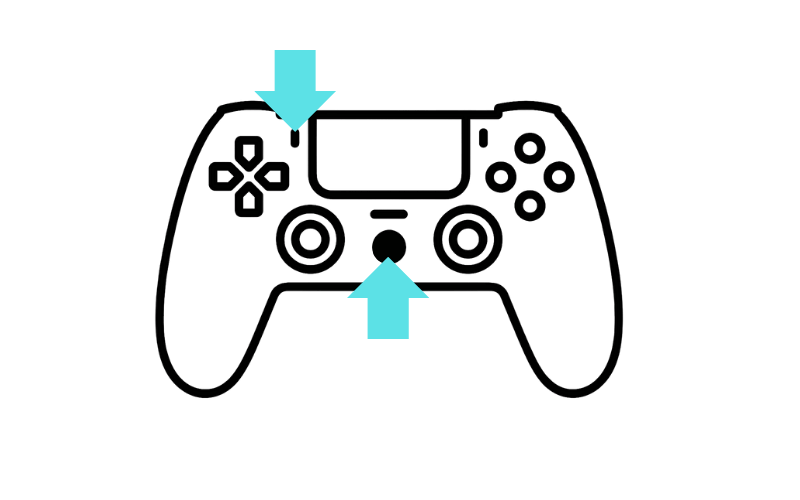
Turn on Bluetooth on your iPhone to discover controllers.
Press and hold PS + Share buttons
Hold both buttons for 5 seconds until the light flashes white rapidly.
Find your controller in Bluetooth settings and tap to connect.
Look for: "DUALSHOCK 4 Wireless Controller"
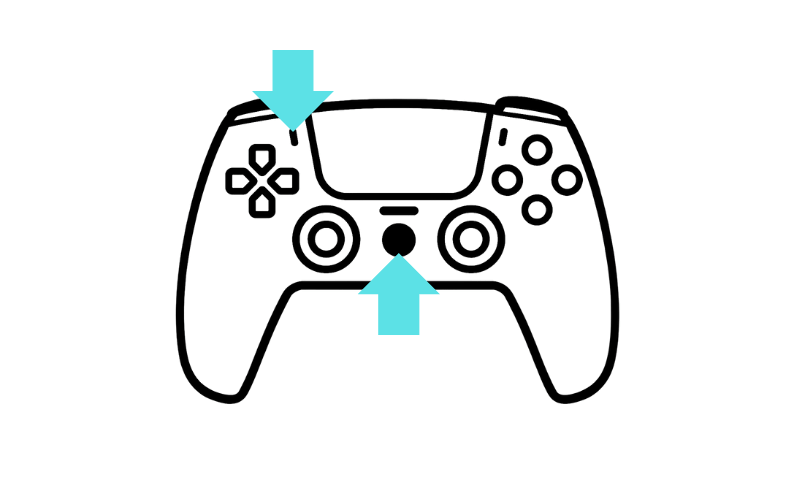
Turn on Bluetooth on your iPhone to discover controllers.
Press and hold PS + Create buttons
Hold both buttons for 5 seconds until the light flashes blue rapidly.
Find your controller in Bluetooth settings and tap to connect.
Look for: "DualSense Wireless Controller"
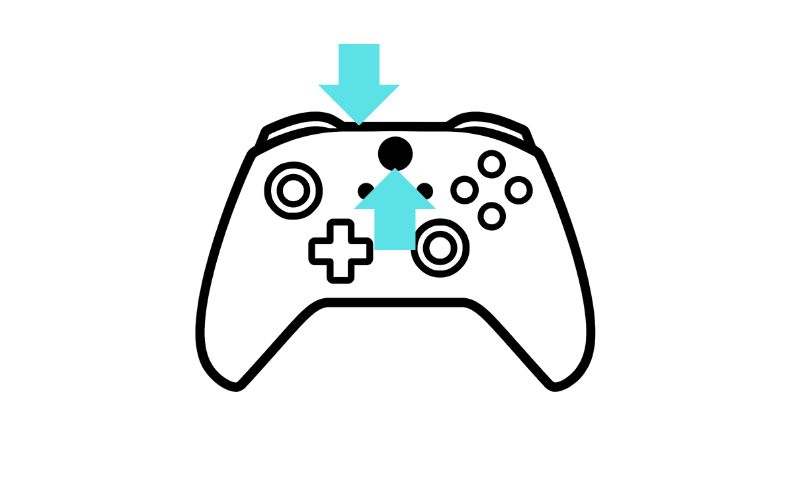
Turn on Bluetooth on your iPhone to discover controllers.
Press and hold Xbox + Bluetooth buttons
Hold both buttons for 5 seconds until the Xbox button flashes rapidly.
Find your controller in Bluetooth settings and tap to connect.
Look for: "Xbox Wireless Controller"
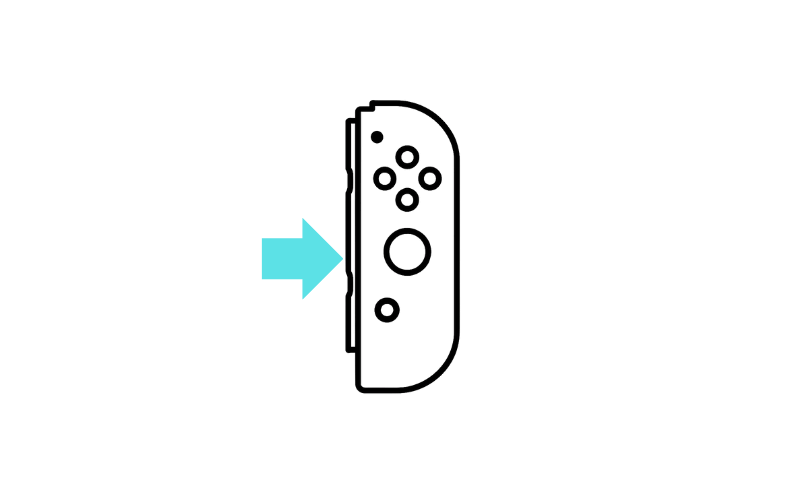
Turn on Bluetooth on your iPhone to discover controllers.
Press and hold the Sync button
Joy-Con: Hold sync button for 5 seconds until green LEDs blink rapidly.
Find your controller in Bluetooth settings and tap to connect.
Look for: "Joy-Con" or "Pro Controller"
Note: Nintendo controllers are only available on iPhone, not Android
Check your controller's manual for specific pairing instructions.
Most controllers have a dedicated pairing or sync button.
Once connected, test vibration compatibility within the app to ensure full functionality.
Note: Third-party controllers may have limited vibration support
No problem! The app automatically detects if no controller is connected and will use your phone's built-in vibration motor instead. However, controllers provide significantly stronger vibrations for a more powerful massage experience.
PlayStation: Connect via USB cable to your console, then press the PS button
Xbox: Press and hold the Xbox button, then the pairing button on your console
Nintendo Switch: Attach Joy-Cons to the console or use the sync button for Pro Controller
The controller will automatically reconnect to your console.
No! This pairing process is only needed the first time. After that, simply turn on Bluetooth on your phone and turn on your controller - they should connect automatically.
Can't find what you're looking for in our FAQ? Having trouble with controller pairing or app functionality? We're here to help you get the most out of your massage controller experience.
Please include details about your device (iPhone/Android), controller type, and describe your issue for faster assistance.